JB Agent & Coach guide

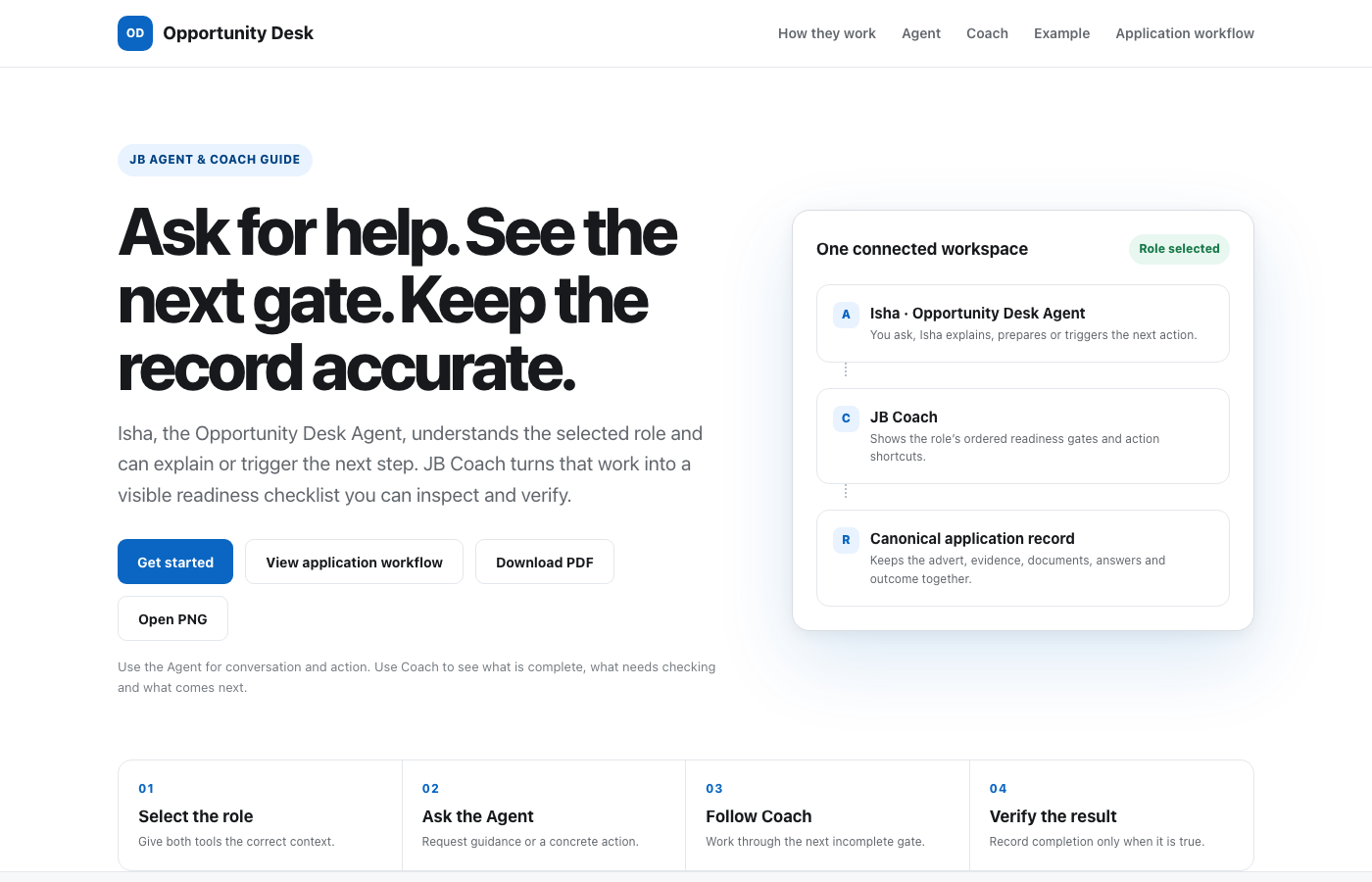
Ask for help. See the next gate. Keep the record accurate.

Isha, the Opportunity Desk Agent, understands the selected role and can explain or trigger the next step. JB Coach turns that work into a visible readiness checklist you can inspect and verify.

Use the Agent for conversation and action. Use Coach to see what is complete, what needs checking and what comes next.

Two views of the same application work.

The Agent and Coach share the selected application context. They serve different purposes, so you can talk naturally without losing the discipline of a reliable checklist.

A

Isha is the conversational Agent

Ask questions, request a review or tell Isha to run the next step. Isha can use the role, your full profile, saved files, form plan and Coach state.

  • Explains what to do and why
  • Finds the next incomplete gate
  • Triggers supported Opportunity Desk actions
  • Surfaces missing facts and human decisions
C

JB Coach is the readiness controller

Coach shows the current role’s gates in order. It separates work in Opportunity Desk from work on the employer’s application page.

  • Shows Ready, Needs and Assist states
  • Opens the relevant workspace or browser action
  • Persists verified hard gates
  • Keeps “ready” tied to evidence

Keep Isha beside the role and its evidence.

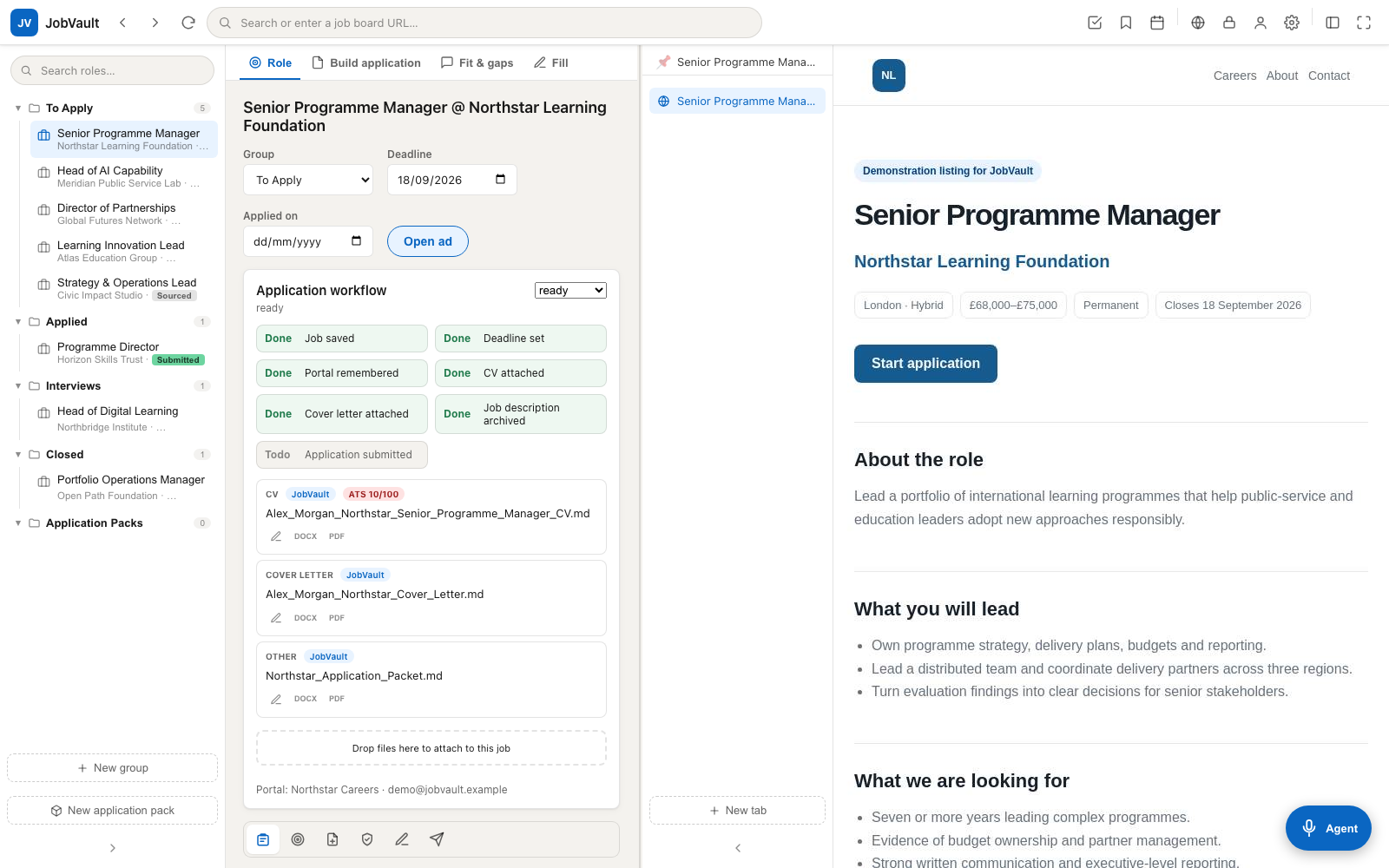
The fictional workspace below shows the selected role on the right, Opportunity Desk preparation on the left and the Agent available throughout.

A fictional Opportunity Desk role workspace showing the application checklist beside the employer advert and the Agent control.
Work in one role contextThe role, workflow status, saved files, employer page and Agent remain connected.
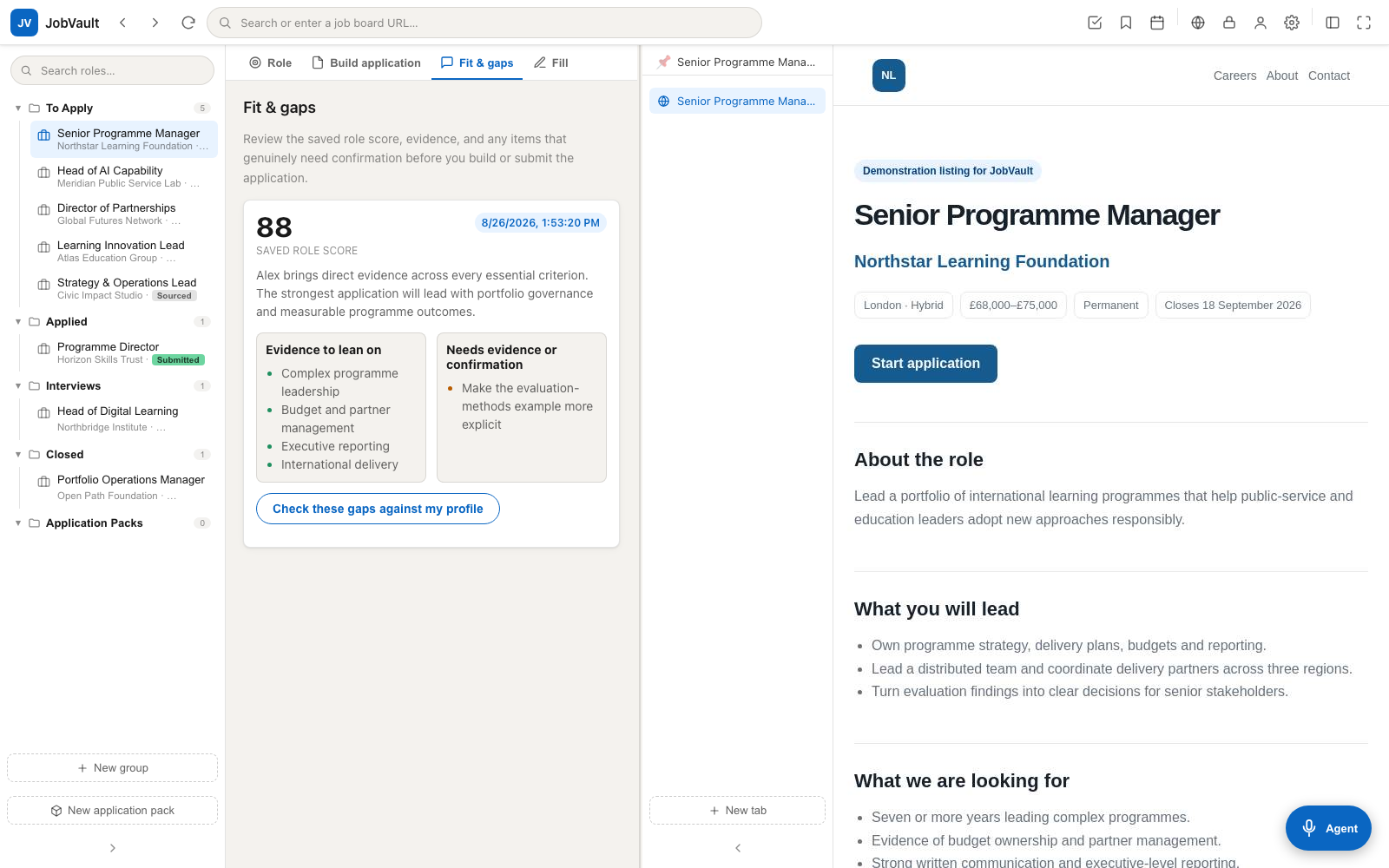
A fictional Opportunity Desk role scan showing fit evidence and gaps beside the employer advert and Agent control.
Ask from grounded evidenceIsha can explain the score and next gate while the cited fit evidence stays visible.

Select the application before you ask.

The selected role anchors the advert, company, deadline, documents, profile evidence, portal and current checklist. Confirm the title and company at the top of Coach before running any action.

Open the role from your pipeline or application round

Select the exact opportunity you intend to work on. If you have similar roles at one employer, verify the vacancy title and reference.

Check that JB Coach names the same role

Coach should show the employer and role you selected. If it does not, reselect the application before filling or attaching anything.

Open the Agent and ask for the next review

Start with “What should I review next?” for a quick, grounded answer from the checklist.

Ask in plain language.

Isha can answer a focused question, inspect the current application state or trigger a supported step. A request to prepare an application follows the gates in order rather than jumping straight to documents.

1

Ask what comes next

Use this when you want a fast answer from JB Coach rather than a broad analysis.

“What should I review next?”
2

Ask for an explanation

Isha can explain why a gate is incomplete, what evidence supports the role score or what still needs human confirmation.

“Why is this application not ready?”
3

Ask for a concrete action

Say exactly what you want run. Isha can open the role, pull the advert, score it, build documents, run ATS, open Review, read the form or apply the fill plan where the workflow allows.

“Run the next step.”
4

Use voice conversation

Turn on Agent voice to speak one turn, hear Isha’s reply and continue hands-free. The conversation still uses the selected role and Coach context.

“Walk me through this application.”
5

Review the result, not just the reply

A triggered action is recorded as triggered until its workflow finishes. Check the updated role, file, form or portal before treating the gate as complete.

“Show me what changed and what still needs checking.”

Follow the first honest “Needs” item.

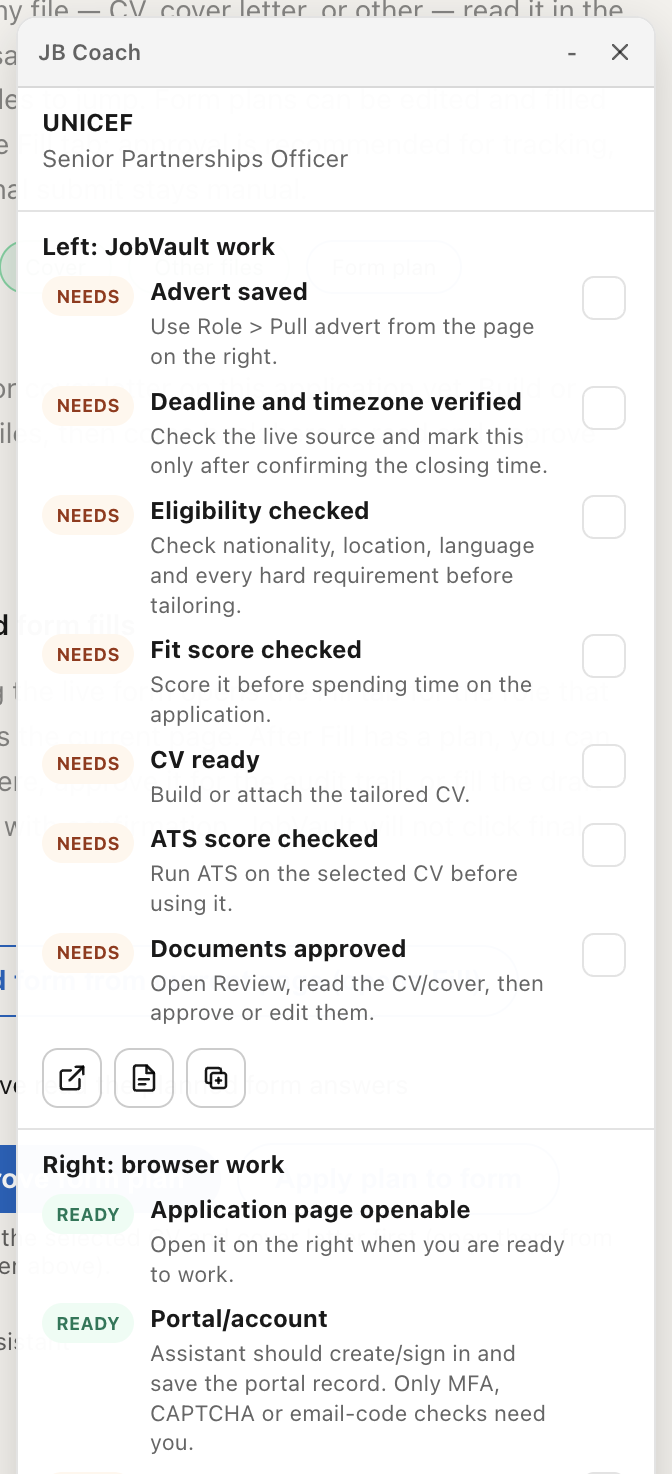
Coach has two sides. The left covers evidence and preparation inside Opportunity Desk. The right covers the live employer portal and submission record.

Left · Opportunity Desk workEvidence and materials
  • Ready
    Advert saved

    The full role text is attached to this record.

  • Ready
    Deadline and eligibility

    Verified against the live source and full profile.

  • Needs
    Fit score checked

    Run Score and inspect its cited evidence.

  • Needs
    CV, ATS and documents

    Build, test and approve the exact files.

Right · Browser workPortal and application
  • Assist
    Portal/account

    The Agent can sign in with an applicable saved portal record.

  • Needs
    Fields and sections captured

    Read every page, question and attachment slot.

  • Needs
    Answers and persistence

    Approve, fill, save, reload and verify.

  • Needs
    Ready to apply

    Complete the final review and preserve confirmation.

A label tells you what kind of action is required.

Coach should never claim completion simply because an action was opened or queued.

Ready

Evidence proves it

Opportunity Desk has the required record, file, score or verified gate.

Needs

You must complete or verify it

Open the suggested action, inspect the result and mark manual gates only after checking.

Assist

The Agent can help

Ask Isha to handle a supported portal or preparation step, then verify the outcome.

Use Agent and Coach as one loop.

This pattern works whether you are beginning a role or returning to a partly completed application.

Ask: “What should I review next?”

Isha reads the selected role’s Coach checklist and names the first incomplete gate.

Ask: “Run the next step.”

Isha triggers the mapped action, such as Score, Build docs, ATS check, Review or Read form.

Inspect the workspace or employer page

Read the evidence, document, answers or filled fields. Correct anything incomplete or unsupported.

Return to Coach

Confirm the gate changed only when the required evidence exists. Manually tick verification gates only after the real-world check.

Repeat until Ready to apply

Complete final human review, explicitly approve submission, and save the confirmation or application number afterward.

Tell Isha the outcome you need.

You do not need special commands. Specific requests produce clearer, more reviewable actions.

What should I review next?

Return the next incomplete Coach gate.

Run the next step.

Trigger the mapped Opportunity Desk action.

Why is this application not ready?

Explain every remaining gate.

Check this role against every profile tab.

Run the full grounded role scan.

Review these documents for this role.

Check relevance, facts, format and filenames.

Read the whole form and prepare the answers.

Capture fields before filling the portal.

Let the Agent do the work it can verify.

Pause only where your identity, consent or an unknown fact is required.

Ask Isha to handle

Routine, reversible work already supported by Opportunity Desk.

  • Pull and verify the advert
  • Run full-profile fit scoring
  • Build and ATS-check documents
  • Prepare and apply approved form answers
  • Open saved portal records and application pages

Step in for

Decisions or controls that must remain yours.

  • Missing or uncertain personal facts
  • Legal, conflict and disciplinary declarations
  • MFA, CAPTCHA, email codes and identity checks
  • Approval of exact documents and answers
  • Explicit approval for the final submission

When the answer or checklist looks wrong.

Isha is talking about the wrong role.

Stop and reselect the correct application. Confirm Coach shows the same title and company, then ask again.

Coach still says “Needs” after an action ran.

Open the resulting page or file and verify the workflow completed. A triggered or queued action is not automatically evidence that the gate passed.

A gate looks complete, but the portal changed.

Re-open the live advert or application page, repeat the relevant check and update the canonical role record. Live evidence takes priority over an older saved result.

The Agent cannot complete a portal step.

Check whether the blocker is MFA, CAPTCHA, an email code, identity verification or an unknown declaration. Complete that human step, then ask Isha to continue from Coach.
Select a role and ask what comes next.

Isha and JB Coach work best when every action stays attached to the correct application record.

Show the real JB Coach
Focused screenshot of the real JB Coach checklist
JB Coach shows the honest readiness gates and the supported actions for the selected application.