Opportunity Desk application guide

From saved opportunity to a complete, checked application.

Opportunity Desk keeps the advert, your evidence, tailored documents, form answers and submission history together. Follow these gates in order so speed never comes at the cost of accuracy.

Isha can guide and prepare each step. You approve facts, declarations, documents and the final submission.

See the evidence, documents and form together.

These fictional examples show the same application moving through Opportunity Desk without exposing a real person’s search.

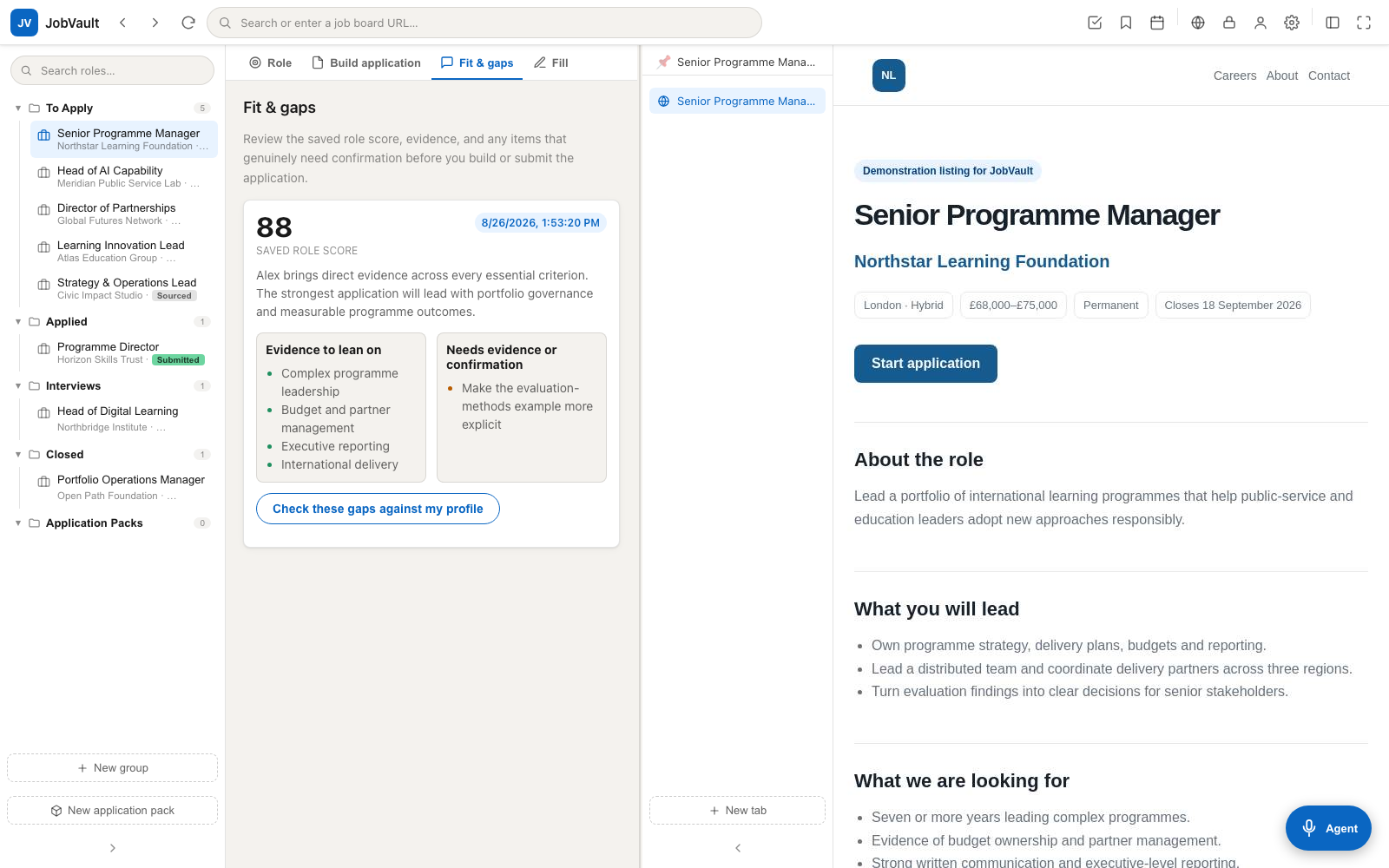
Opportunity Desk fit and gaps screen showing a fictional role score, evidence and missing criteria.
Check fit and gapsReview the score, evidence and genuine gaps before preparing documents.
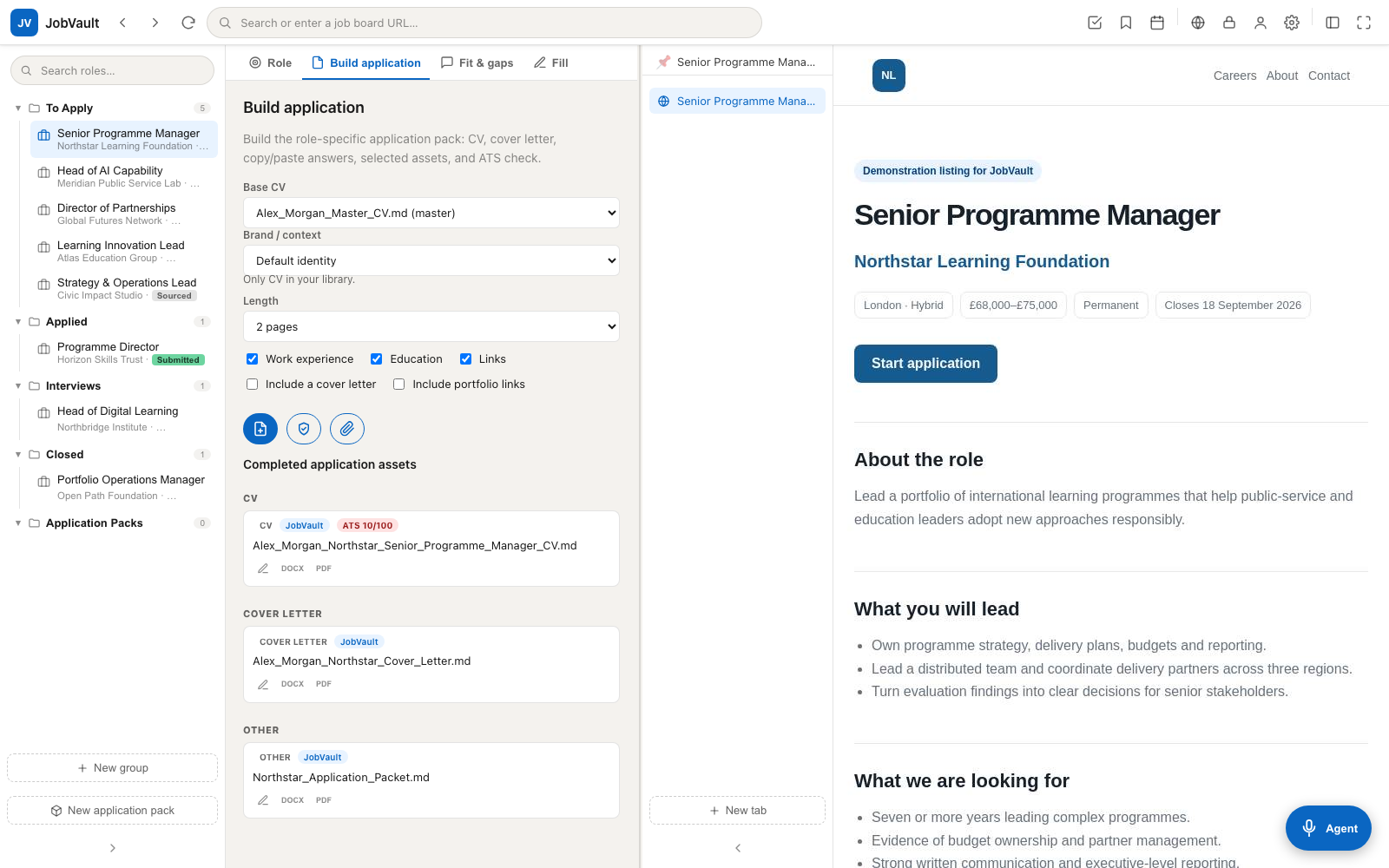
Opportunity Desk Build application screen showing selected CV, cover letter and application assets for a fictional role.
Build the applicationKeep the tailored CV, cover letter and supporting files attached to one role.
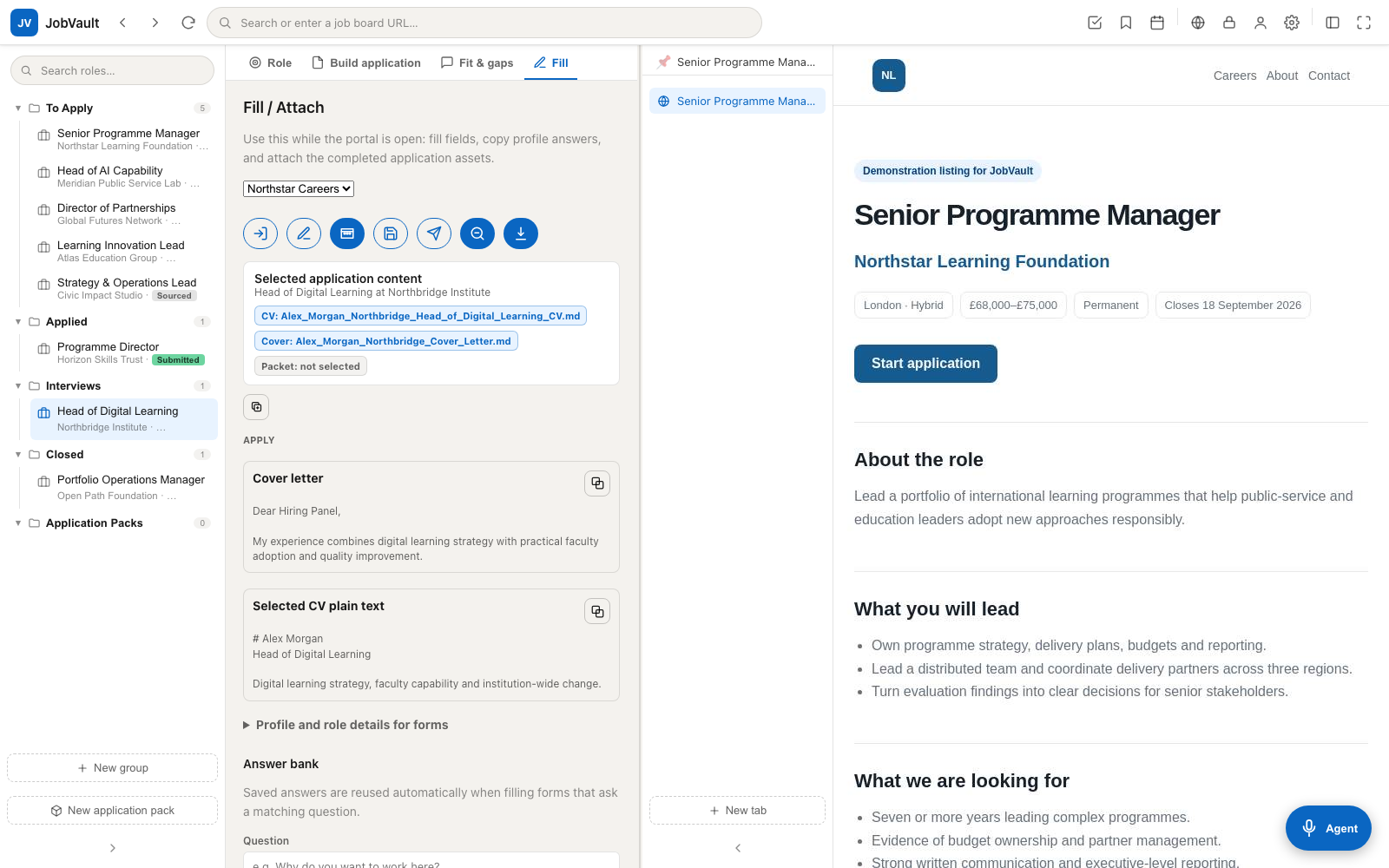
Opportunity Desk Fill and attach screen showing a fictional application’s saved answers and selected files.
Fill and verifyReview saved answers and approved attachments beside the employer’s form.
Phase 1 · Capture

Confirm that the opportunity is real, open and right for you.

These checks stop duplicate applications, missed deadlines and work on roles blocked by a mandatory requirement.

01

Save and verify the complete advert

Capture the role title, employer, location, full advert and correct application URL. Search Opportunity Desk, your inbox and the employer portal for a previous application or duplicate before creating a new record.

In Opportunity Desk

Open the live advert, use Extract current page, and open the existing record if Opportunity Desk finds the same URL.

One canonical role record

02

Verify the deadline, closing time and timezone

Read the live source. Record the exact date, time and timezone, or mark the role as rolling/no deadline only when the employer says so.

In Opportunity Desk

Save the deadline on the role and mark the deadline gate verified in JB Coach.

A deadline you can trust
03

Check every mandatory requirement

Confirm location, right to work, nationality, language, qualifications, clearances, technical requirements and any other hard condition. A high match score cannot override a genuine blocker.

In Opportunity Desk

Compare each essential criterion with your verified profile, then mark eligibility checked.

A clear pursue or stop decision
Phase 2 · Position

Show the strongest truthful case for your fit.

Opportunity Desk should use evidence from every master-profile tab. Review the result so important experience is not overlooked and unsupported claims are never added.

04

Score the role against your complete profile

Match every requirement to grounded evidence from all profile tabs: work, education, projects, speaking, training, certifications, awards, memberships, publications, skills and saved answers.

In Opportunity Desk

Run Score, inspect the cited evidence and correct any missing or mistaken match before continuing.

Evidence-backed fit and gap analysis
05

Build or select the tailored CV

Lead with the experience and outcomes that answer this advert. Keep every claim factual, use clear standard headings and give the document a clean professional filename.

In Opportunity Desk

Open Build docs, create or select the role-specific CV, and save it to the role’s file library.

One employer-ready CV
06

Run ATS against that exact CV

Check the selected document against the verified advert. Use the score, missing terms and section feedback to improve clarity without keyword stuffing or inventing experience.

In Opportunity Desk

Select the finished CV and run ATS check. Re-run it after any material edit.

A current CV-to-role score
07

Review and approve every document

Read the CV, cover letter, supporting statement, portfolio and any other attachment as the employer will receive them. Check names, dates, contact details, formatting and role relevance.

In Opportunity Desk

Use Review to open, edit and approve the final files. Keep them attached to the canonical role record.

Approved final documents
Phase 3 · Complete

Read the whole portal before filling any part of it.

Application portals hide questions in later pages, accordions and conditional sections. Inventory first, then fill from your saved evidence and verify persistence.

08

Open the correct application URL

Use the employer’s live apply link for this exact vacancy. Confirm the title and reference match the Opportunity Desk record before entering personal information.

In Opportunity Desk

Choose Open ad or the saved application link so the browser and role workspace stay connected.

The right role in the right portal
09

Read the live form

Let Opportunity Desk identify the visible fields and create a proposed answer plan from your structured profile. Sign in first if the portal only reveals the form after login.

In Opportunity Desk

On the Review page choose Read form from current page (opens Fill).

A saved role-specific fill plan
10

Inventory every portal section

Open every page, tab and accordion. Record every question, declaration, roster option, checkbox, reference request and attachment slot, including conditional fields.

In Opportunity Desk

Re-read each portal page as it becomes available and confirm the complete portal-section inventory in JB Coach.

No hidden section left unchecked
11

Review and approve the proposed answers

Check every answer against your master profile and the question’s wording. Improve relevance and specificity, but never guess dates, credentials, salary facts or declarations.

In Opportunity Desk

Edit the answer plan in Fill, then approve it in Review for the audit trail.

Accurate answers ready to apply
12

Fill the form and attach the approved files

Apply the planned answers, select every relevant truthful option, and upload each document to the correct slot. Use the appropriate saved regional contact details for the application.

In Opportunity Desk

Use the Fill actions, then visually compare every completed field and filename with the approved plan.

A fully populated draft
13

Save, reload and verify persistence

Save the portal draft, reload or revisit it, and confirm that dropdowns, dates, long answers, checkboxes and attachments remain. Fix fields that silently revert or fail to upload.

In Opportunity Desk

Compare the reloaded portal with the fill plan, then mark Saved answers persist only after the check passes.

A draft proven to survive reload
Phase 4 · Submit

Make the final decision, then keep proof of what happened.

The last gate is a human review of the complete application. Submission status comes from confirmation evidence, never from the existence of a document pack.

14

Review, submit and record the outcome

Review the complete form, files, declarations and contact details. You decide when to submit. After submission, capture the confirmation page or email, application number and submitted time, then update the canonical Opportunity Desk record.

In Opportunity Desk

Use JB Coach’s final readiness list, give explicit approval for submission, and save the confirmation evidence immediately afterward.

A verified submitted application

“Ready” means every gate is green.

Documents and an ATS score are part of readiness. The live portal, complete answer plan and persistence check matter just as much.

Before final review

The canonical role record should show all of these.

  • Duplicate and submission history checked
  • Live advert and application URL verified
  • Deadline, time and timezone verified
  • Eligibility and hard requirements checked
  • Final documents reviewed and approved
  • Every portal section and required field inventoried
  • Answers and attachments survived save and reload

Pause when a fact is uncertain

Opportunity Desk can draft and guide, but it should not turn an assumption into an application fact.

  • Confirm identity, legal, conflict and disciplinary declarations yourself.
  • Resolve unknown dates, qualifications and contact details from evidence.
  • Complete MFA, CAPTCHA, identity checks or one-time codes when the portal asks.
  • Approve the exact documents, answers and final submission.

Ask naturally. Keep the workflow grounded.

Isha uses the selected role, JB Coach, your structured profile and the application record. These prompts move the work forward while keeping each result reviewable.

What should I review next?

Find the nearest incomplete gate on the current role.

Walk me through this application.

Use JB Coach to explain the next action and why it matters.

Check this role against my full profile.

Run the evidence-backed role scan across every profile tab.

Prepare everything possible for this application.

Create the documents and fill plan, then surface the items needing your decision.

Review the documents before I apply.

Check relevance, factual grounding, formatting and clean filenames.

Run the next step.

Trigger the next available Opportunity Desk action and return to the coach.

Automation prepares the work. You own the application.

The best experience removes repetition while preserving a clear decision point wherever accuracy, identity or consent matters.

01

Facts and declarations

Review anything that represents your identity, history, eligibility or legal position.

02

Application materials

Read and approve the exact CV, letter, answers and attachments the employer will receive.

03

Portal access

Handle private authentication steps such as MFA, CAPTCHA and identity verification.

04

Final submission

See the completed application, make the final decision and preserve the confirmation.

Using the workflow well.

Can I skip a step when the deadline is close?

You can work quickly, but the gates still matter. Opportunity Desk can prepare independent steps in the background and surface blockers early. Do not skip eligibility, document approval, the complete form inventory or the save-and-reload check.

Does an ATS score mean my application is ready?

No. It measures how the selected CV aligns with the advert. Readiness also requires a verified live opportunity, eligibility, approved documents, complete portal answers and a saved draft that persists.

Will Isha invent an answer when my profile is incomplete?

It should use grounded evidence and flag missing facts for you. Add verified information to your structured profile so the correction remains available for future applications.

Who clicks the final submit button?

You review and approve the completed application. If you explicitly authorise submission, the agent may submit the named application and must then capture the confirmation in Opportunity Desk.

Take the next opportunity through every gate.

Open Opportunity Desk, select a role and ask Isha, “What should I review next?”

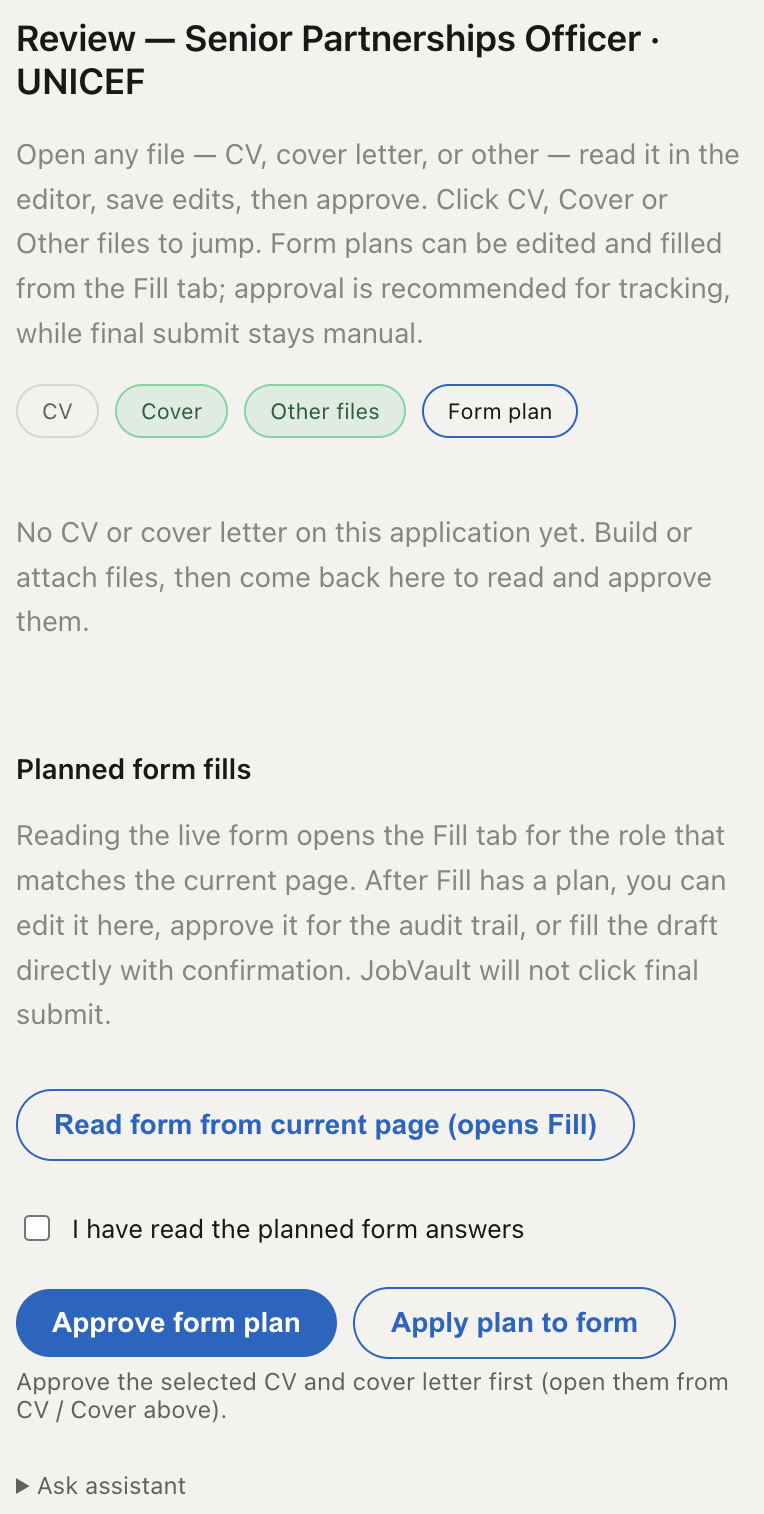
Show the real Opportunity Desk application review
Focused screenshot of the real Opportunity Desk application review workspace
The application record, JB Coach and review controls remain connected while you check the submission files.